
Extending WISER#
WISER’s functionality can be extended through a plugin system that exposes three distinct integration points:
Add named actions to the WISER Tools menu. Useful for launching custom workflows, dialogs, or analyses that operate on the currently loaded data. |
|
Appear when the user right-clicks on specific objects (datasets, spectra, ROIs). Receive the selected object as context, so they can act on exactly what the user picked. |
|
Register custom functions in the WISER Band Math dialog, extending the built-in set of spectral operations with your own algorithms. |
All plugins are plain Python classes that subclass one of the three base types
defined in wiser.plugins:
wiser.plugins.ToolsMenuPlugin— Tools menu pluginswiser.plugins.ContextMenuPlugin— context-menu pluginswiser.plugins.BandMathPlugin— band-math plugins
No internal build step is required — point WISER at a directory containing
your plugin’s source (or its virtualenv site-packages) via
Settings → Plugins, and WISER will load it at startup.
A complete worked example of each plugin type is available in
src/example_plugins/ in the WISER repository.
Prerequisites: plugin development requires comfort with Python 3, Qt6/PySide6 (for any graphical UI), and NumPy/AstroPy (for spectral data operations).
Setting Up Plugin Paths#
WISER ships only the libraries needed for visualization. If your plugin requires additional third-party dependencies, configure plugin paths in Settings → Plugins:
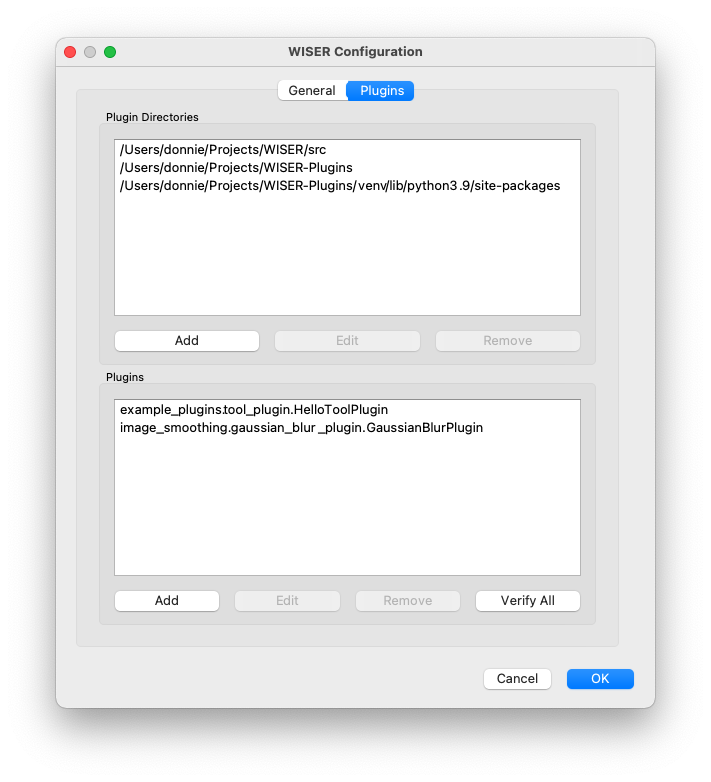
In the top half of the config window enter the paths that WISER should
search. This will either be the path to the plugin’s source directory (for
example, ~/Projects/WISER-Plugins) or the path to its installed
dependencies (for example,
~/Projects/WISER-Plugins/venv/lib/python3.9/site-packages).
A typical virtualenv-based setup looks like this:
# From the ~/Projects/WISER-Plugins directory
virtualenv venv
source venv/bin/activate
pip install opencv-python
Point WISER at the site-packages directory of that environment so it can
find the installed packages.
In the bottom half of the config window enter the fully qualified class names of your plugin classes. The Verify All button attempts to load and initialize every registered plugin and reports any errors — check the WISER logs for details if a plugin fails to load.
Plugin Dependencies#
WISER ships pinned conda environments; it is good practice to match your plugin’s dependency versions against the version of WISER you are targeting. Mismatched versions usually work but can produce unexpected behaviour.
WISER loads plugins in its own interpreter and appends plugin paths to the end
of sys.path, so WISER’s own dependencies always take precedence over a
plugin’s. For why this is the case and what it implies, see the
Plugin Dependencies developer
page.
The dependency lists for each release are available as downloadable text files below.
Release 1.3b1 Dependencies
Windows dependencies: downloadable text file
ARM Mac dependencies: downloadable text file
Intel Mac dependencies: downloadable text file
Logging#
Plugins should use Python’s standard logging module to write to the WISER runtime logs. Log locations by platform:
Linux:
~/.wiser/wiser.logmacOS:
~/Library/WISER/wiser.logWindows:
%USERPROFILE%\\AppData\\Local\\WISER\\wiser.log
WISER provides a @log_exceptions decorator that automatically logs any
exception raised inside a decorated plugin method: