
Band Math#
Band math evaluates an arithmetic expression over your data and adds the result as a new dataset. It is how you compute an index, build a mask, ratio two scenes, or apply any per-pixel formula WISER has no dedicated tool for.
Open it with Tools ▸ Band math….
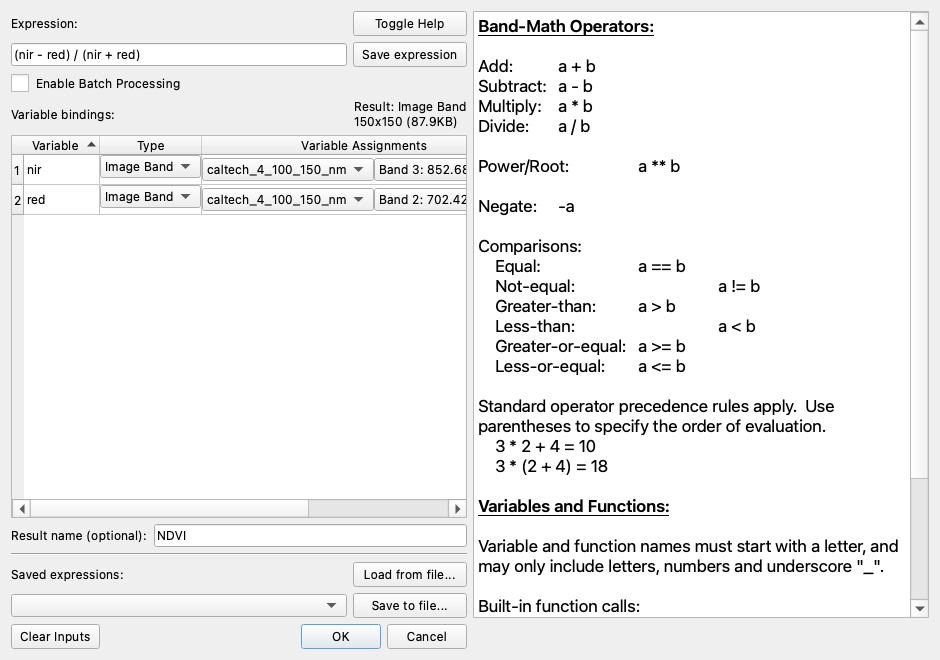
For a worked example see Tutorial 4.
How a run works#
Type an expression and press Enter.
WISER parses it. Every name it does not recognize as a function becomes a variable and gets a row in Variable bindings.
Bind each variable — choose its type, then the dataset, band (by number or by wavelength) or spectrum it refers to.
Give the output a Result name.
Click OK.
Above the table, WISER reports the result type and size, for example
Result: Image Band, 150x150 (87.9KB). Read it before running anything large.
Toggle Help opens a reference panel listing every operator, beside the expression you are writing.
Operators#
Category |
Operators |
|---|---|
Arithmetic |
|
Power and root |
|
Negation |
unary |
Comparison |
|
Grouping |
|
Standard precedence applies: 3 * 2 + 4 is 10, 3 * (2 + 4) is 18.
Comparisons return 1 where the test passes and 0 where it fails, which is how you build masks:
ndvi > 0.35
Multiply masks for a logical AND:
(ndvi > 0.35) * (band4 < 0.2)
Built-in functions#
sin cos tan arcsin arccos arctan arctan2 dotprod
That is the complete list
There is no built-in sqrt, log, exp, abs, min or max. Use ** 0.5 for a square root. For anything else, write a band-math plugin. A plugin registers new functions in this
dialog without rebuilding WISER, and is the supported way to extend the
language.
dotprod takes the dot product of two operands, which is useful for projecting
a cube
onto a spectrum.
Variables#
Names must start with a letter or underscore and may contain letters, digits
and underscores. Names are case-insensitive: NIR, nir and Nir are the
same variable.
Each variable binds to one of:
Type |
Binds to |
Shape |
|---|---|---|
Image |
A whole dataset |
|
Image Band |
One band of a dataset |
|
Spectrum |
A collected spectrum or a library entry |
|
Numeric literals may be used directly and need no binding.
Picking an image band by wavelength#
Band numbers do not carry over between sensors. In WISER’s band labels, which count from 0, the band nearest 860 nm is Band 64: 857.45 nm in an EMIT scene, Band 97: 862.47 nm in an AVIRIS-NG scene and Band 53: 859.65 nm in an AVIRIS-classic scene (the EMIT, AVIRIS-NG and Cuprite AVIRIS-classic scenes WISER is tested with). An Image Band variable can therefore be bound by wavelength instead of by band number. Its row has three controls after the dataset:
Band / Wavelength — how the band is picked. Band chooses from the band list as before.
In Wavelength mode: the wavelength, its unit (
nmorum), and a tolerance ± nm (default 10 nm).
WISER binds the band whose center is nearest the wavelength among the bands within the tolerance, and shows that band, with its actual wavelength, in the (now read-only) band list, for example Band 64: 857.45 nm.
If no band lies within the tolerance, or the dataset has no band wavelengths, nothing is bound: the reason appears in red under the row and in the result line, and OK refuses to run. WISER never falls back to a more distant band. Widen the tolerance only if you accept the band it reports.
The 10 nm default is about one band spacing of common imaging spectrometers (AVIRIS-NG about 5 nm, EMIT about 7.4 nm, AVIRIS-classic about 10 nm), so on those grids a wavelength inside the sensor’s range always resolves, while a wavelength the sensor does not sample is refused.
Band lists show the wavelength with its unit (Band 53: 859.65 nm) whenever the band has a wavelength and the file gives no other band name.
Types combine as you would expect: a cube times a number is a cube; a cube divided by a spectrum divides every pixel’s spectrum band-by-band. WISER checks compatibility when it parses and tells you before running if shapes do not match.
Saved expressions#
Save expression — adds it to the Saved expressions dropdown, for this session and later ones
Save to file… / Load from file… — writes the saved set out or reads one in, so a group can share a common library of indices
Saved expressions are also stored in a project.
Spectral-index presets#
The Spectral-index presets dropdown, under the saved expressions, fills in a standard index and binds each of its bands by wavelength (tolerance 10 nm) on the dataset already chosen in each row. Check the band each row reports, and change the dataset if needed.
Preset |
Expression |
Reference wavelengths |
Source |
|---|---|---|---|
NDVI |
|
NIR 860 nm, red 660 nm |
Rouse et al. (1974), NASA SP-351 (660/860 nm narrow-band equivalents) |
SAVI |
|
NIR 860 nm, red 660 nm; L = 0.5 |
Huete (1988), Remote Sens. Environ. 25, 295-309 (660/860 nm narrow-band equivalents) |
NDWI (Gao) |
|
860 nm, 1240 nm |
Gao (1996), Remote Sens. Environ. 58, 257-266 |
MSI |
|
1600 nm, 820 nm |
Hunt and Rock (1989), Remote Sens. Environ. 30, 43-54 |
A preset needs a dataset with band wavelengths that covers its reference wavelengths. On a sensor that does not sample them, for example a VNIR-only camera for NDWI or MSI, or a few-band image with no band near 660 nm, the preset reports which wavelength has no band rather than substituting one. Presets are built in; they are not added to the saved-expressions list or a project.
Batch processing#
Tick Enable Batch Processing to apply one expression to every raster in a folder.
Set an input folder. Variables can then be bound to batch types (
Image Cube BatchorImage Band Batch), which resolve against each file in turn.For a batch band variable, pick the band by index or by wavelength with a tolerance. Choose wavelength when the files come from different sensors or have different band counts.
Set an output folder and a result suffix.
Choose whether results are loaded into WISER as well as written to disk. For a large batch you usually do not want a hundred datasets open.
Create batch job, then start it. Jobs run with progress bars and can be canceled; per-file errors are collected and shown by View errors.
Variables can be mixed: bind one to a batch folder and another to a single fixed dataset, for example to ratio every scene in a folder against one reference.
Memory#
Band math is not streamed for every case
Band math loads its operands into memory. WISER shows the expected result size before you run and processes large image-cube expressions a few bands at a time where it can. Before running, it estimates the memory the expression needs and refuses one that would need more than 80% of the memory available: the message gives the required and available memory in GB and suggests a spatial subset. In batch mode a file that would need too much is skipped and reported as an error for that file; the other files still run. Subset spatially before you start (Save as…, Dimensions tab), and prefer Image Band operands to whole Image operands when the expression only needs a few bands.
Common expressions#
Purpose |
Expression |
Notes |
|---|---|---|
Normalized difference (NDVI, NDWI, NDSI…) |
|
Bind |
Simple ratio |
|
Iron oxide: red / blue |
Band depth |
|
|
Mask |
|
1 where true, 0 where false |
Combined mask |
|
Logical AND |
Reflectance from raw |
|
Sample, dark, white-reference cubes |
Ratio to a reference spectrum |
|
|
See also#
Band-Math Plugins — add your own functions